Complete a family or friends photo
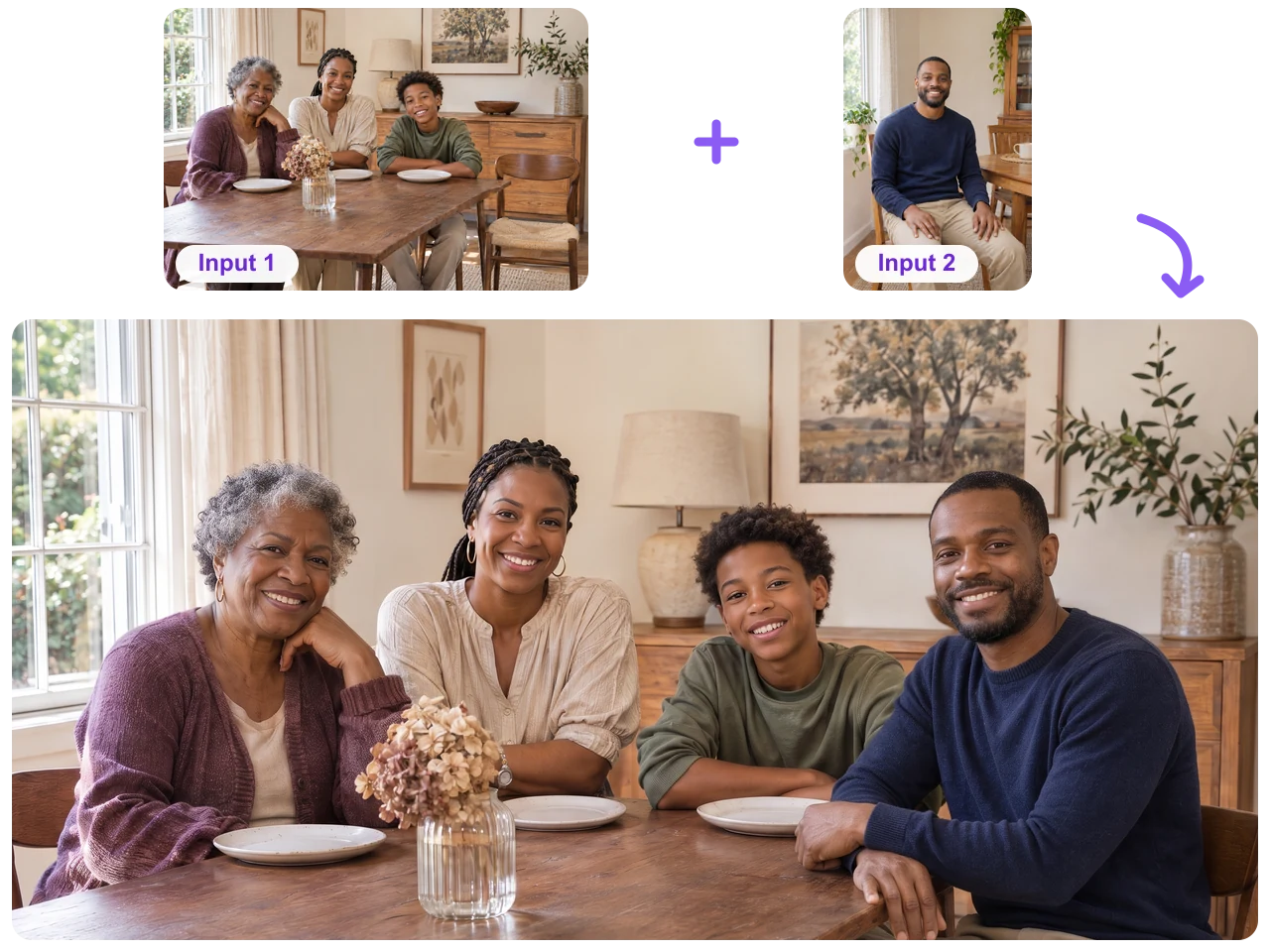
Add someone who missed the group shot, using a separate photo of them. Bring everyone into the picture you want to keep.
Upload your group photo and a photo of the person you want to add. Choose their position, and let AI bring them together in one natural-looking photo.
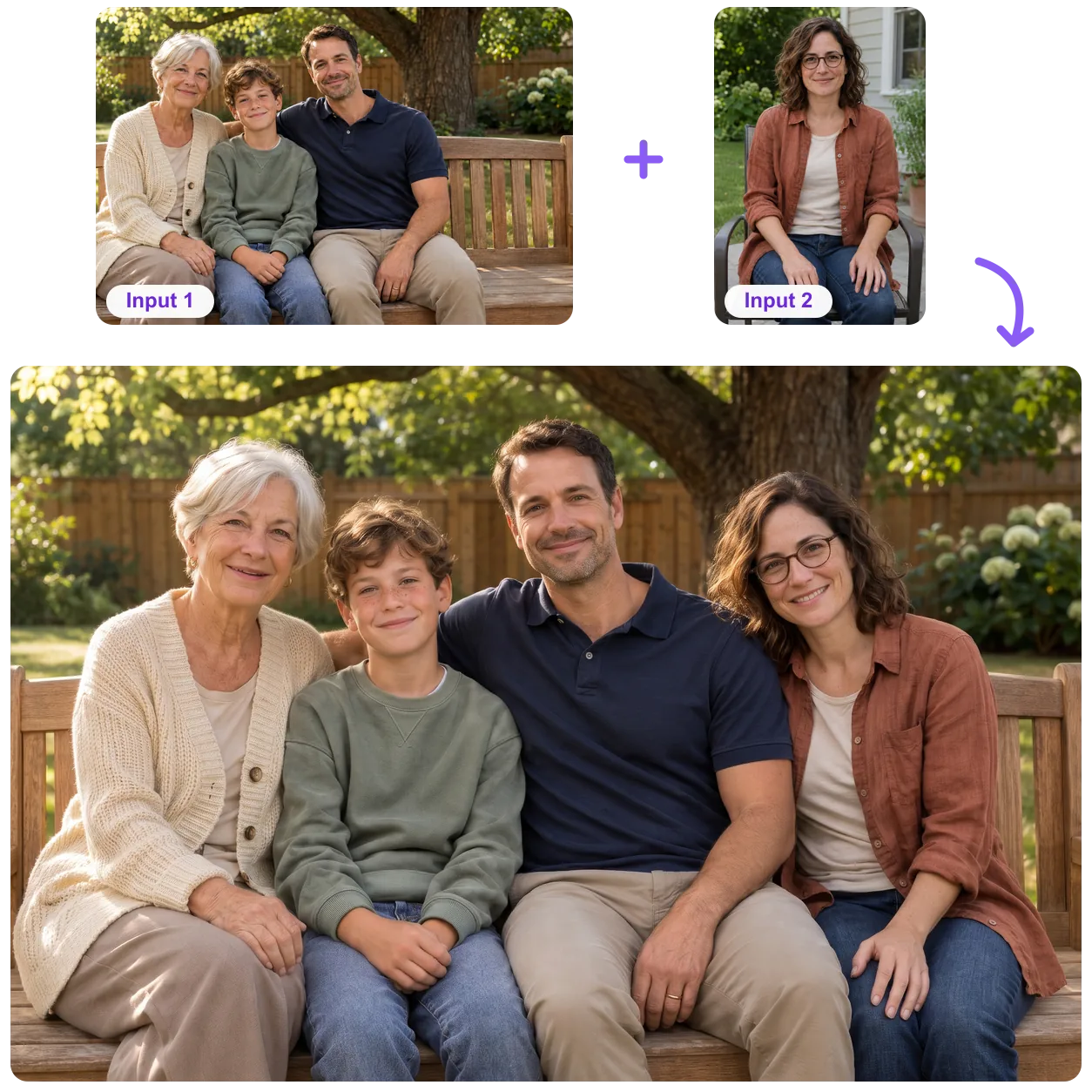
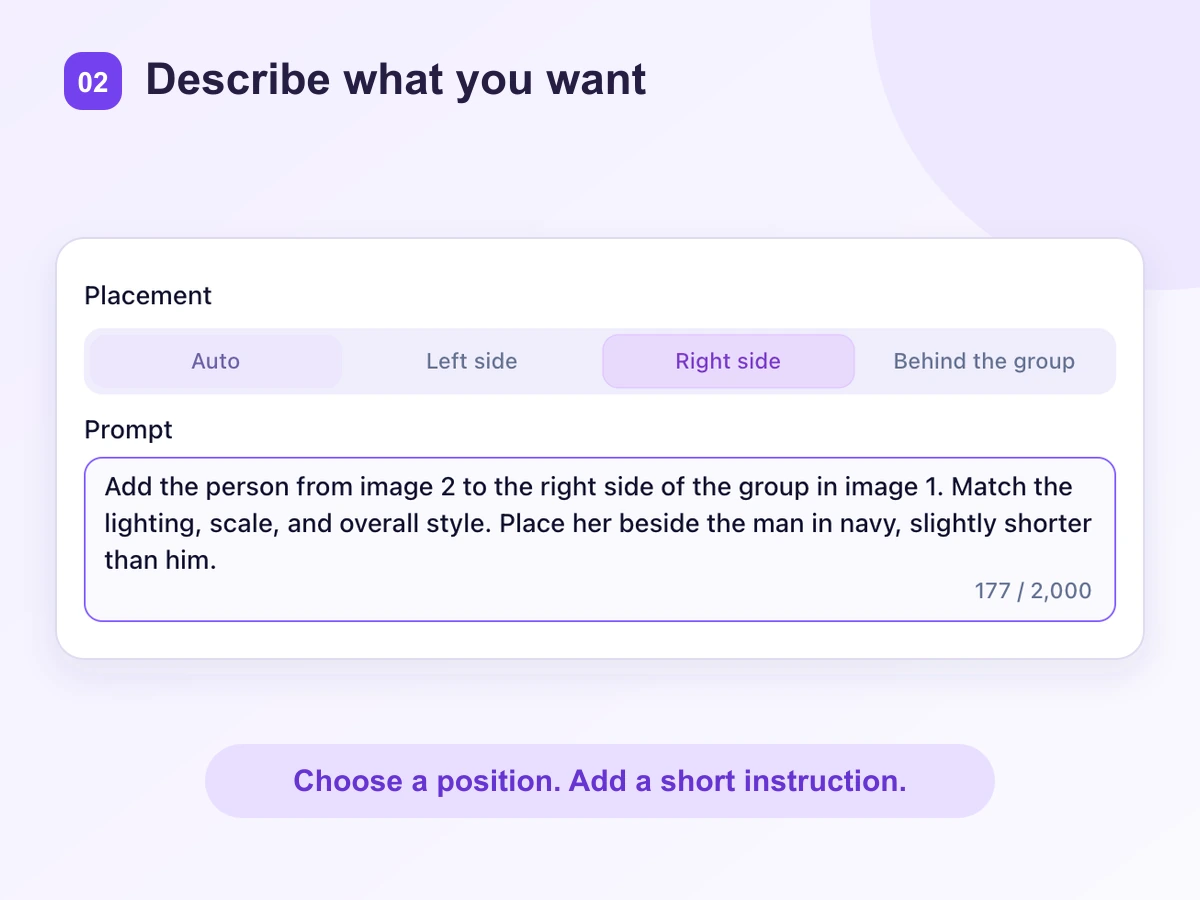
Add the person from image 2 to the right side of the group in image 1. Match the lighting, scale, and overall style. Place her beside the man in navy, slightly shorter than him.
Your combined image will appear here.
Add someone who missed the group shot, using a separate photo of them. Bring everyone into the picture you want to keep.
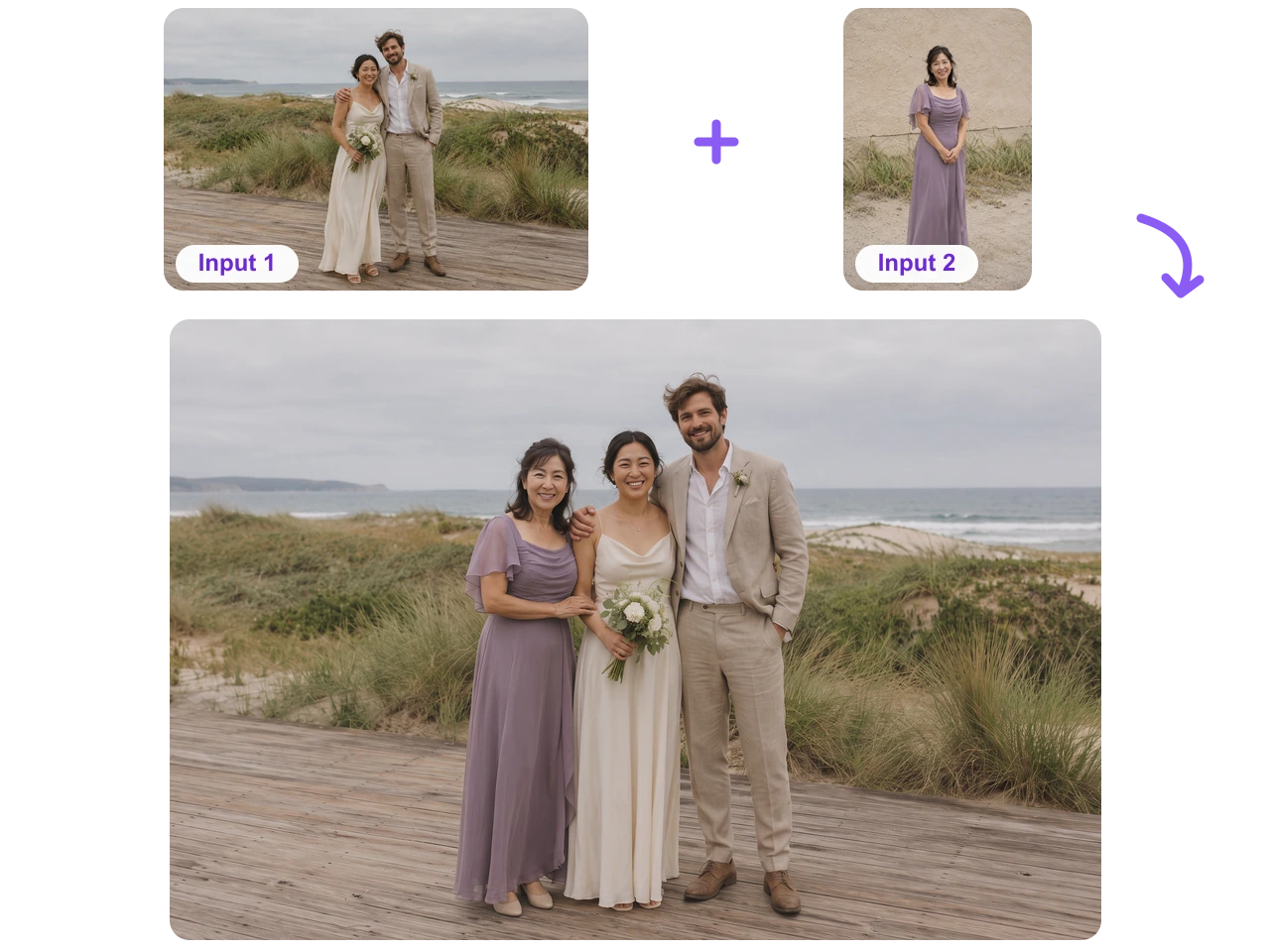
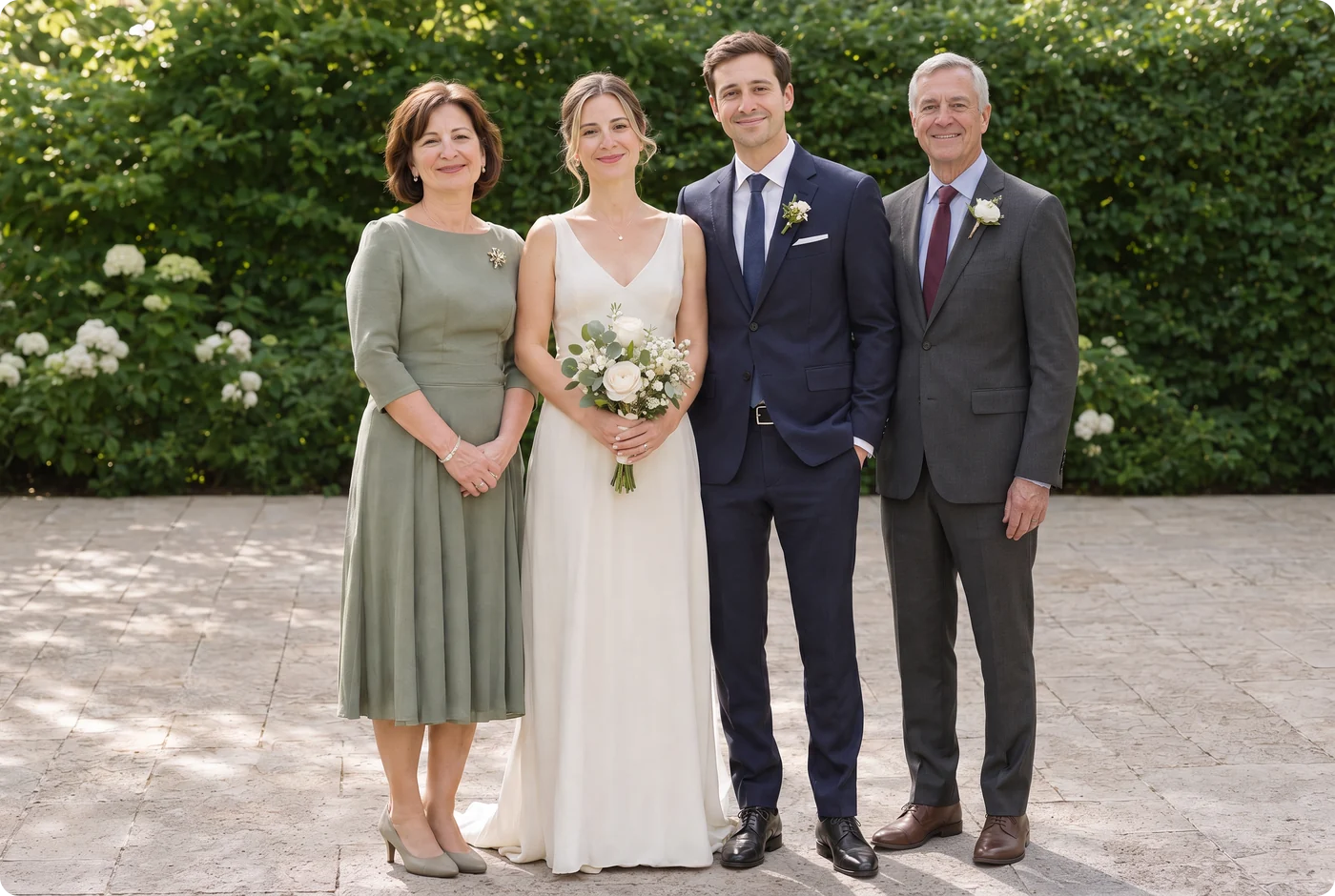
Bring a parent or loved one into a wedding photo when you don't have a picture together. Choose where they stand beside the people already there.
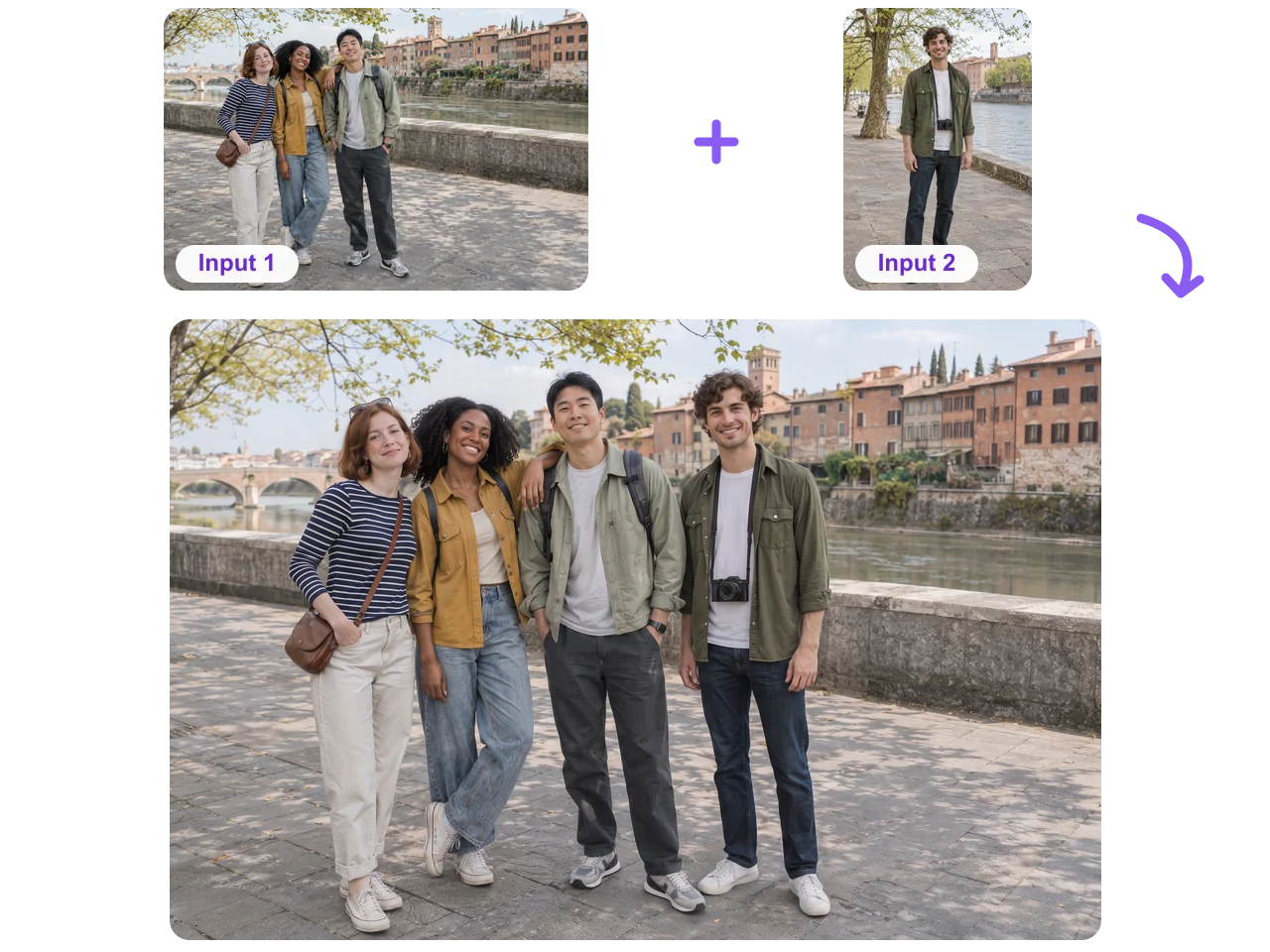
Add the person who was behind the camera. Use another photo of them, ideally from the same day, to complete the group shot.
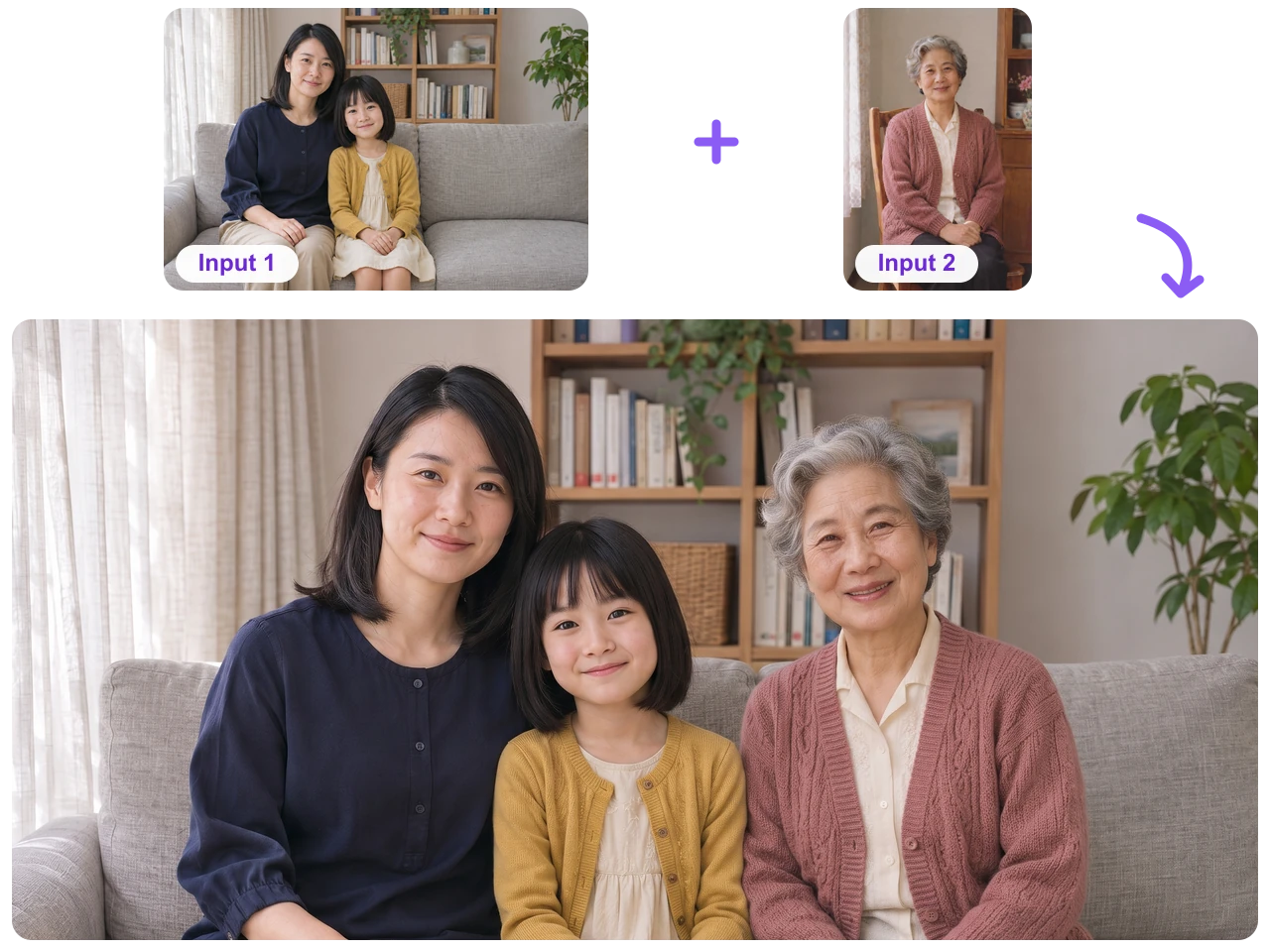
Use an older photo of a loved one who has passed away to include them in a family picture, creating a new keepsake from the photos you have.
The AI uses your photos as references for people, composition and style. No lengthy prompts or photo-editing skills needed.
Position Control
Our generator supports custom placement on either side of the group or beside someone specific, giving you control over who stands where in the photo.
Height & Scale
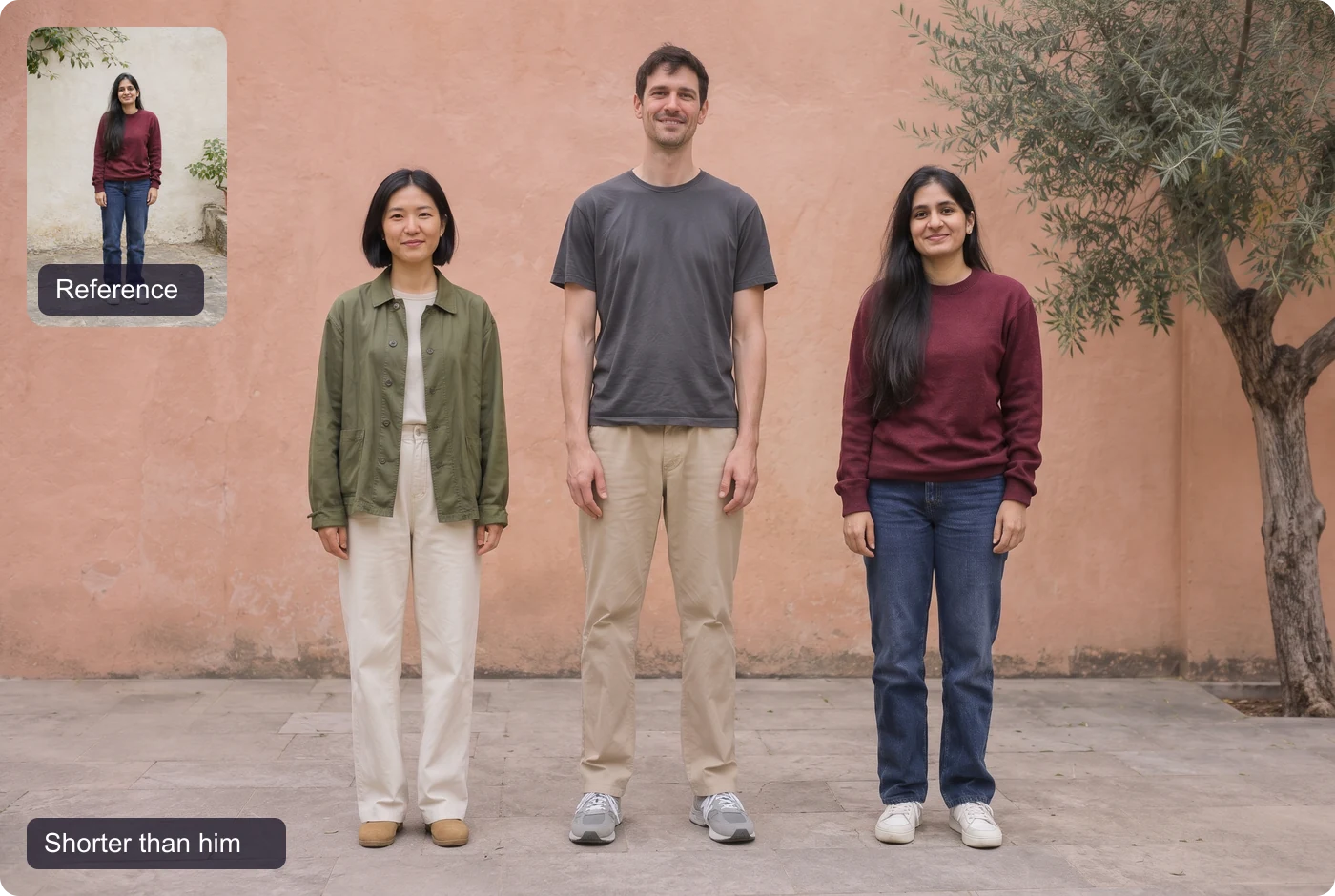
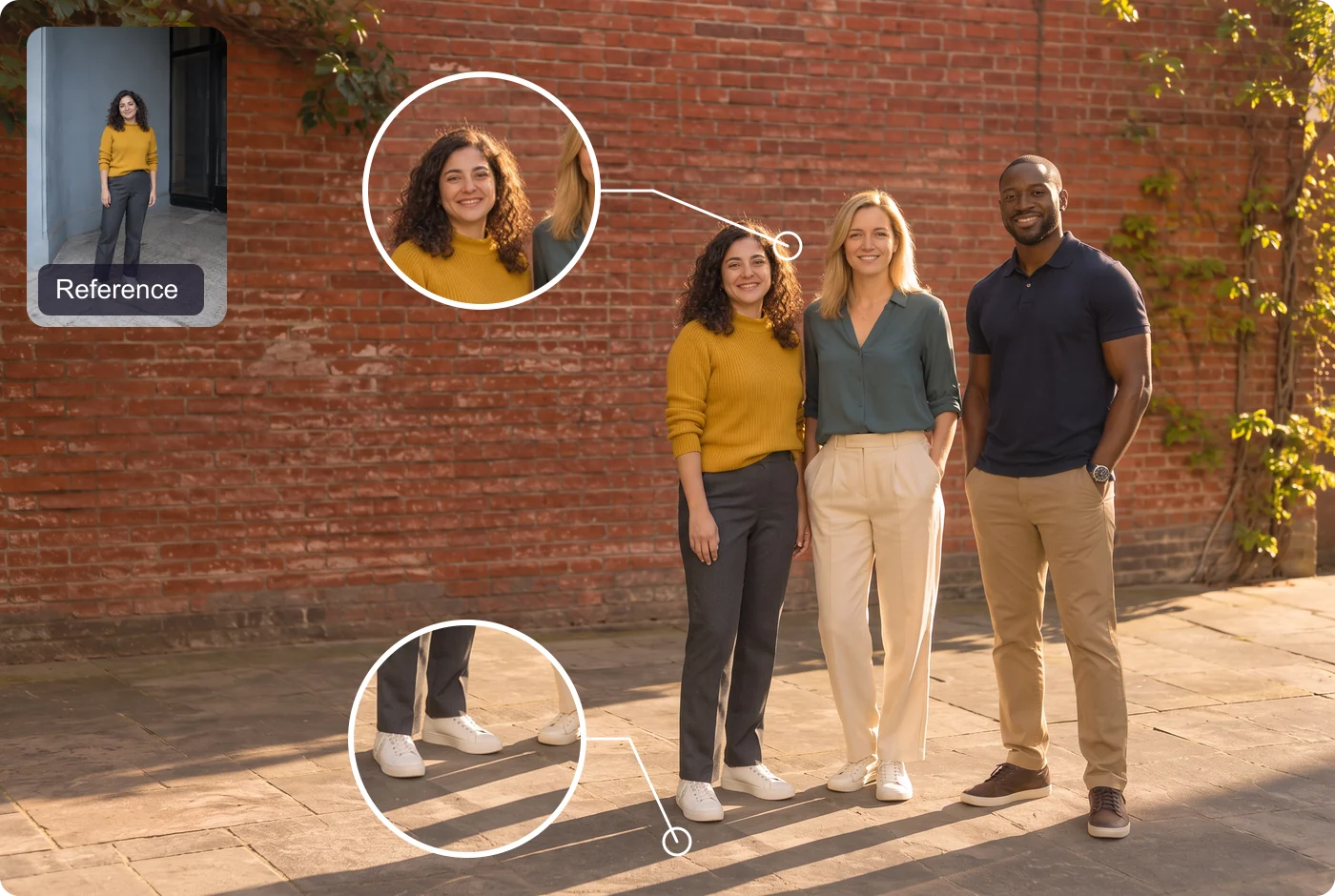
The AI can adjust the added person’s height and scale in relation to the group. Simple cues, such as “shorter than the man,” help it find proportions that suit the scene.
Facial Details
The AI uses the reference portrait to guide facial features, hairstyle and expression while adapting the person to the original photo’s setting and style.
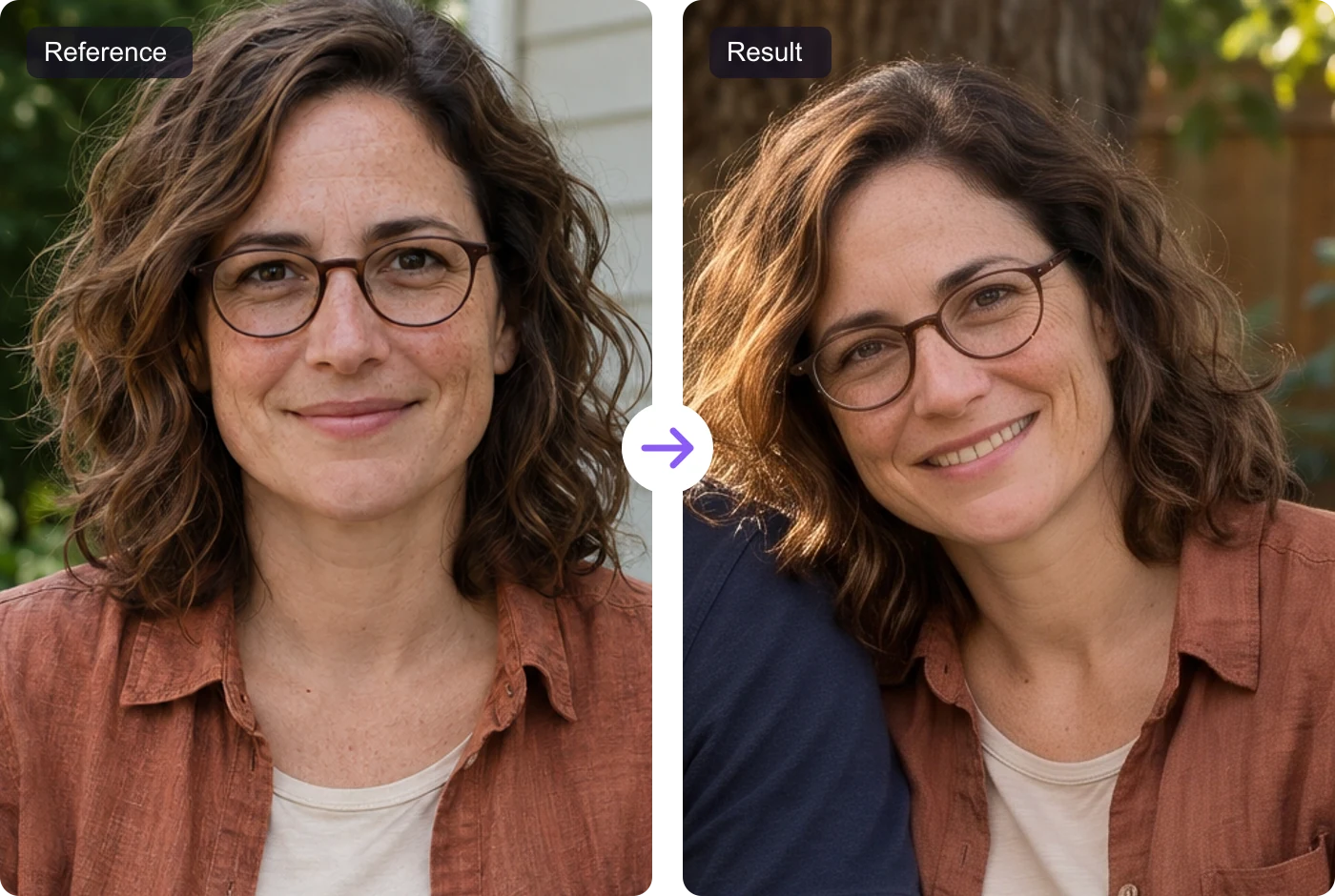
Natural Lighting
The AI uses the original photo’s light direction, color tones and shadows to help the added person blend into the scene, whether it’s soft indoor light or warm sunshine.
STEP 01
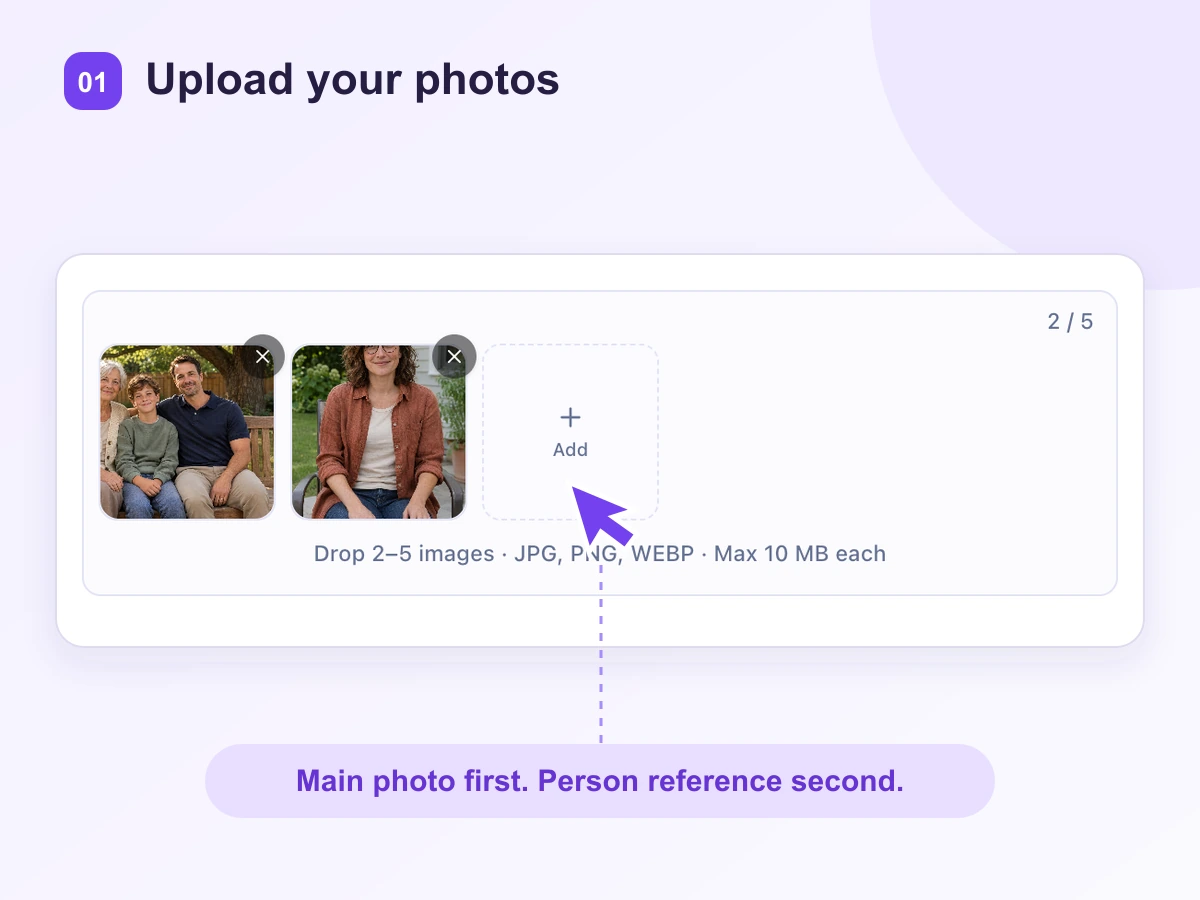
Upload the main photo first, then a clear photo of the person you want to add.
STEP 02
Leave Placement on Auto or choose a position. Add details in the prompt, such as who they should stand beside or how tall they should look.
STEP 03
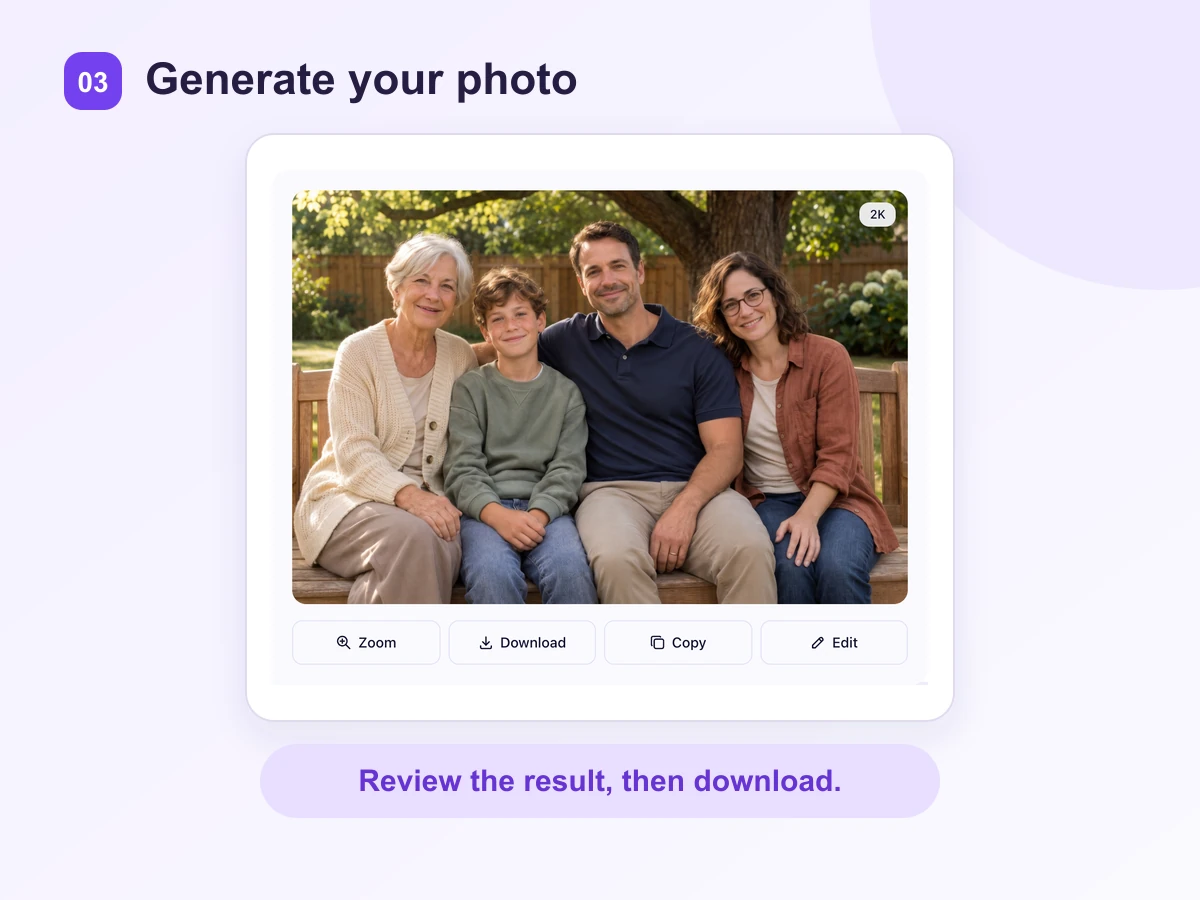
Click Generate, review the result, and download your photo.
Want to follow a complete example? Read the step-by-step photo tutorial.
Choose a sharper reference with a similar face angle. Compare the result with the original, and try again from the original photos if other faces have changed.
Name someone they should stand beside and add a relative height, such as “slightly shorter than the man in blue.” Adjust the prompt and generate another version.
Try a reference taken in more similar light, or choose a position with more room. Check shadows and overlapping hands or shoulders when you review the next result.
Upload your main photo and a photo of the person you want to add. Choose their position or leave it on Auto, describe any details you want, then click Generate. Review and download your finished photo.
Yes. Your first image is free, with no sign-up required. After the free trial, sign in to continue generating with credits.
Not always. AI uses your photos as references, but faces and other details can change. Compare the people in the result with your original photos before saving.
Choose a clear photo with a visible face and an angle similar to the main photo. Similar lighting also helps. If you want to show their full body, use a reference that includes their body and clothing.
Yes. Choose Left side, Right side, or Behind the group, or leave Placement on Auto. For a more specific position or relative height, describe it in the prompt.
Yes. Open the website in your iPhone or Android browser—no app installation is needed. Upload your photos, describe what you want, and generate and download your image on your phone.
Yes to both. You can add one person, then use the result to add another. You can also use an older photo of a loved one; choose one with a clear face to give the AI a better reference.
Yes. You can download your image and print it. The free 1K resolution may not provide enough detail for larger prints. Choose 2K or 4K for more detail, depending on your intended print size.
Yes. Your photos are private. Our AI service providers process them to generate your image, and we do not use your photos to train AI models. Original uploads are deleted within 24 hours. Generated images are kept for 24 hours for free users, or six months if you have paid access when they are created. Download any images you want to keep.